SanitizeGPT for Windows: requirements and installation
For Windows beta testers — version 0.1.0-beta.1. You do not need programming tools or terminal commands to install the app.
There are three parts to first-time setup:
- Install Ollama, the software that runs the local detection model.
- Install SanitizeGPT, the PDF review application.
- If the correct model is not already available, approve its download in the SanitizeGPT launcher.
If Ollama and the exact model are already present, setup can be much quicker. The small SanitizeGPT installer does not contain the model download.
Before you start
| You need | What to check |
|---|---|
| A Windows x64 computer | Windows 11, or Windows 10 version 22H2 or newer. This installer targets Intel/AMD 64-bit Windows; it is not an ARM64, macOS, or Linux installer. |
| Memory | 16 GB RAM recommended. A lower-memory minimum has not been qualified for this beta. |
| Free disk space | Start with at least 12 GB free for Ollama, the model, the app, and working space. At the model-download step, the launcher requires approximately 6.5 GB free on the model drive. |
| A browser | An up-to-date Microsoft Edge or Google Chrome is recommended for the review interface. |
| Ollama for Windows | Install it separately from the official Ollama Windows download page. |
| Internet for first setup | Needed to obtain Ollama and download the model if it is missing. The model download is about 3.32 GB, in addition to the Ollama software download. |
| A normal Windows account | Choose Install for me only. SanitizeGPT normally needs no administrator rights. Organization policy may require help from IT. |
| A text-based PDF | Start with a fictional or de-identified document whose text you can select in a PDF reader. Scanned/image-only PDFs are not supported in this beta. |
A dedicated graphics card is optional. Compatible GPU acceleration can improve speed; CPU-only operation can be slow and has not been performance-qualified on a clean test machine.
The 12 GB disk figure is setup guidance, not a measured minimum for every computer. Ollama's own Windows documentation currently specifies at least 4 GB for its software, with models needing additional space. Its Windows and driver requirements are maintained in the official Ollama Windows guide.
You do not need to install Python, pip, Node.js, npm, .NET, Docker, Visual Studio, or Inno Setup. Those are bundled runtimes or tools used by the developer to build the application.
What is inside the installer?
| Component | Included? |
|---|---|
| The browser review interface | Yes, already built and ready to open in your browser. |
| The local API, Python runtime, and Python packages needed by this beta | Yes. These include the local PDF, redaction, settings, and AI-gateway components. |
| The Windows launcher and its .NET runtime | Yes. You do not need a separate .NET installation. |
| Ollama software | No. Install it separately. SanitizeGPT does not install, upgrade, or uninstall Ollama. |
| The Qwen model files | No. Reused if the exact compatible model exists; otherwise downloaded separately after you approve. |
| Presidio and its language models | No. This Windows beta uses local Qwen only. |
| OCR software for scanned PDFs | No. Tesseract/Poppler and OCR packages are excluded. |
| An OpenAI API key or API credits | No. These are optional and supplied by you for document chat. |
The current SanitizeGPT installer is about 78 MB, and its wizard requests about 231 MB for the installed application. The much larger Ollama/model setup is separate. Installed runtimes can also use temporary working space.
Step 1 — Install Ollama
- Open the official Ollama Windows download page.
- Download the Windows installer and follow Ollama's installation instructions.
- Let the installation finish. If your organization blocks it, contact IT.
You do not need to choose another model, buy a cloud model, or run a model-download command for SanitizeGPT. Its launcher selects the required local model. Ollama cloud features are not used for this detector.
If you install SanitizeGPT first, its launcher can show Install Ollama from official site. This button opens the download page; it does not install Ollama for you. After installing Ollama, return to the launcher and choose Retry checks.
Step 2 — Open the SanitizeGPT installer
Get SanitizeGPT-0.1.0-beta.1-Setup.exe from the beta issuer. In a developer checkout, the built installer is under dist/installer/; you do not need to build it yourself.
This beta is unsigned. Windows or organization policy may show a warning or block execution. Obtain the current installer and its published checksum from the trusted beta issuer; if it is blocked, contact the issuer or IT. Do not disable Windows protections or bypass organization policy.
Open the installer and choose Install for me only (recommended). This is the normal single-computer installation.
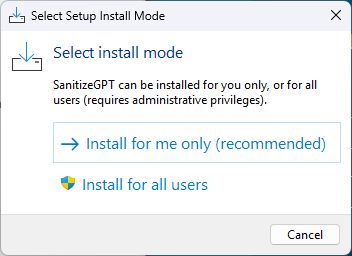
Actual beta setup screen. The all-users option requires administrator rights and is not the recommended beta path.
Step 3 — Keep the suggested installation folder
The default location is your Windows account's application folder:
%LOCALAPPDATA%\Programs\SanitizeGPT
Keep the folder offered by Setup and select Next. You normally do not need Browse.
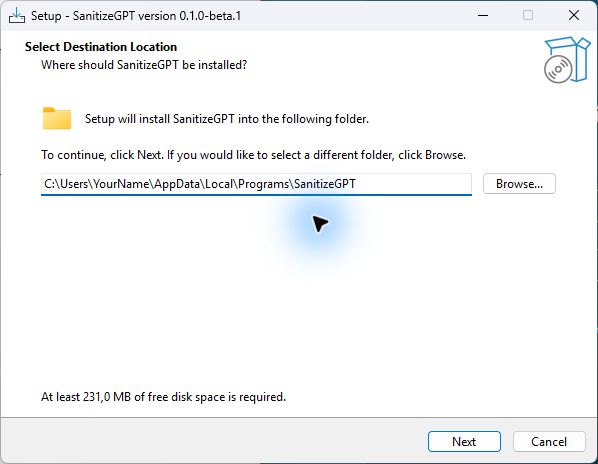
The screenshot uses YourName as an example username for privacy. Keep your own account's default folder; do not type YourName literally.
Step 4 — Choose a shortcut and install
Leave Create a desktop shortcut selected if you want an icon on your desktop. The Start Menu entry is also available. Select Next.
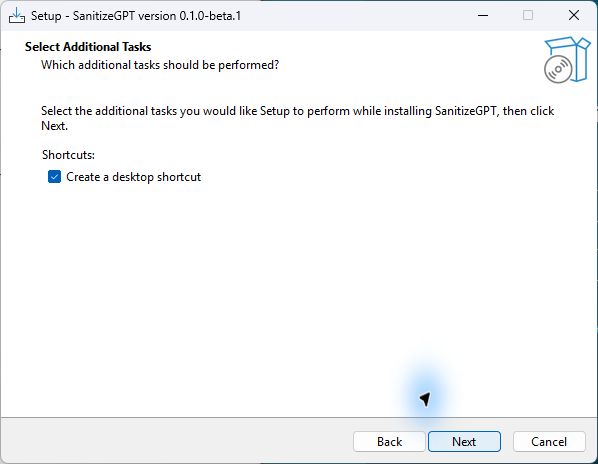
Check the summary, then select Install. Wait for Setup to finish, then launch SanitizeGPT from the final setup page, the Start Menu, or the desktop shortcut.
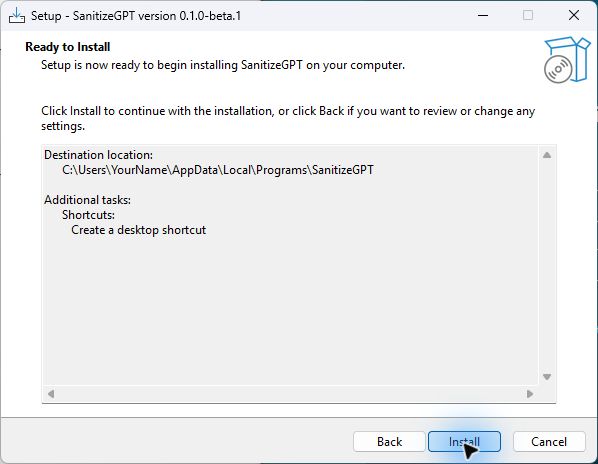
Screenshots were captured from the actual wizard without performing another installation. The example destination uses a placeholder username.
Step 5 — Let the launcher prepare the local model
The launcher checks Ollama and the model before opening the review application.
| What you see | What to do |
|---|---|
| Ollama is required for local Qwen detection | Use Install Ollama from official site, finish Ollama setup, then choose Retry checks. |
| One-time Qwen setup required | Read the size and destination, tick the download-consent box, and select Download pinned model. |
| Verifying the pinned model with local CPU/GPU inference… | Wait. This starts the local model and checks that it can respond; slower computers may take longer. |
| SanitizeGPT is ready | The browser opens automatically. Use Open SanitizeGPT to open it again. |
The required model is qwen3.5:4b, approximately 3.32 GB. "Pinned" means this beta accepts a particular verified version, rather than silently switching to a different model.
Here is what happens after download consent:
- SanitizeGPT checks that the official model listing still matches this beta's expected version.
- It asks the local Ollama service to download the model. Ollama manages the model files; there is no separate model setup program for you to run.
- SanitizeGPT verifies the resulting model identity and makes a small local test request.
- It starts the local review service and opens your browser.
For a new isolated download, the files go under:
%LOCALAPPDATA%\SanitizeGPT\ollama\models
If the exact model is already available through a compatible Ollama service or existing model store, the launcher can reuse it without another model download. A model with the same name but a different version may not qualify. Other Ollama models are not upgraded or removed by SanitizeGPT.
You can choose Cancel setup during a download. For another attempt, choose Retry checks, then approve the model download again if requested. Ollama may reuse cached partial files. If the official model version has changed, the launcher stops and asks for an updated beta instead of substituting another detector.
The missing-model screens above are described from the launcher implementation. The documentation screenshots use the setup wizard and an already-prepared model; a fresh-download clean-machine test remains outstanding.
Step 6 — Try a local PDF review
- Keep the launcher open.
- In the browser, select Add PDFs and choose a fictional or de-identified text-based PDF.
- Wait for the local scan. Review the findings overlaid on the PDF.
- Use Redact, Allow, or Block as appropriate. You can also select source text and choose Redact selection for a manual correction.
- Select Preview outbound and inspect the exact text that would be shared.
Detection can miss sensitive information. An Allow action leaves that value in the outbound text, so review the complete preview before sending anything.
What works offline, and what needs a key?
| Feature | Internet after model setup? | OpenAI key? |
|---|---|---|
| Open and review text PDFs | No | No |
| Detect and redact with local Qwen | No, once the exact model is available and working | No |
| Preview sanitized documents and prompts | No, once local detection is available | No |
| Ask document-chat questions through the current built-in provider | Yes | Yes |
Qwen is the local detector in this beta. Built-in document chat currently uses OpenAI; it is not an offline Qwen chat feature. Configure your own key in the application's Settings only if you want cloud chat. Provider charges may apply. Before submitting a question, review its sanitized outbound preview; original-value mappings stay on your computer.
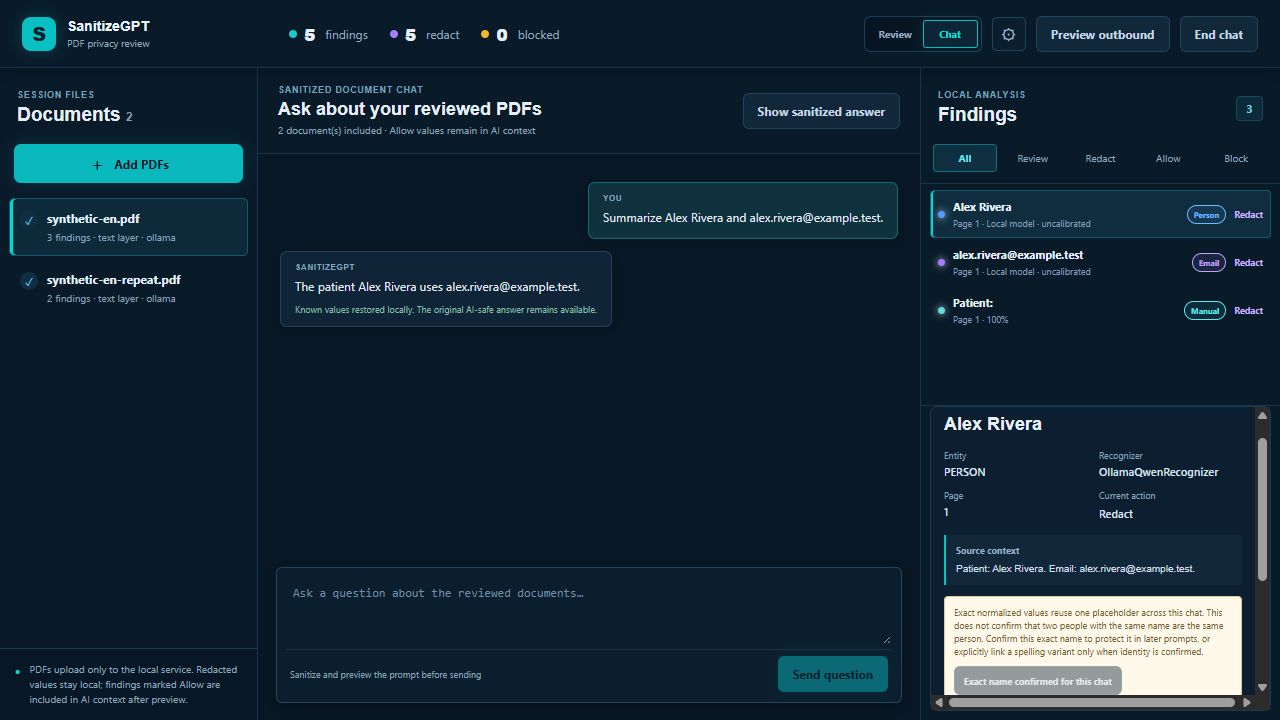
Fictional demonstration data from validation. The screenshot's provider response came from a loopback test fixture, not a live cloud request. The app restores known values locally and can also show the sanitized answer.
Stopping, updating, and uninstalling
- Use End chat to clear the active documents, messages, and session mappings.
- Use Stop in the launcher, or close the launcher, to stop SanitizeGPT's local services. Closing only the browser does not stop the launcher. A shared Ollama service is left running.
- Before testing an update, back up settings/history you want to retain and obtain the current installer and checksum from the issuer. Avoid running another setup while a review session is active.
- Uninstall SanitizeGPT through Windows Settings → Apps or its Start Menu uninstaller.
- The current rebuilt installer retains application data under
%LOCALAPPDATA%\SanitizeGPT, including encrypted settings/keys and any isolated model store. It leaves a separate Ollama installation and shared models alone. - Full data removal is a separate manual action after you have backed up anything you want to keep. Reinstalling cannot recover data removed by an older installer. Earlier internal test installers had unsafe uninstall behavior; use only the current issuer-verified build.
If something does not work
| Problem | Next step |
|---|---|
| Launcher cannot find Ollama | Complete the official Ollama installation, return to SanitizeGPT, and choose Retry checks. |
| Download does not start | Tick the consent box. Confirm internet access and approximately 6.5 GB free on the model drive. If you cancelled an earlier attempt, choose Retry checks first. |
| The model version no longer matches | Ask the beta issuer for a refreshed release. Do not rename another model to bypass the check. |
| Local model check times out | Check Ollama is available, close memory-heavy applications, and retry. Report recurring failures with privacy-safe diagnostics. |
| PDF has no usable text | This may be a scan/image-only PDF. Obtain a text-based PDF; this beta does not include OCR. |
| Chat is disabled | Local review can still work. Cloud chat needs a configured key, reviewed documents, resolved findings, and internet access. |
| Windows blocks setup | Contact the issuer or IT. This beta is unsigned; do not disable security protections. |
For help, use Beta feedback in the launcher. Settings → Export diagnostics exports runtime metadata; review it before sharing. Do not attach real PDFs, API keys, or screenshots containing private information.
Packaging and support notes
For anyone curious why setup is straightforward:
| Packaging tool | Its job |
|---|---|
| PyInstaller, one-folder mode | Packages the API with its Python runtime and required native/Python dependencies. |
| React/Vite production build | Produces the ready-to-use browser files; Node.js is not needed on the user's PC. |
| .NET self-contained publish | Packages the launcher with its runtime. |
| Inno Setup | Builds the Windows setup wizard, shortcuts, and uninstaller. |
| Ollama | Separately runs and downloads the local Qwen model after setup approval. |
This is an invited beta. Independent clean-machine Windows testing, fresh-model download/recovery testing, and CPU-only performance qualification remain outstanding. Support/developer references in the source repository are docs/WINDOWS_BETA_VALIDATION.md and docs/WINDOWS_BETA_BUILD.md; their development-tool requirements are for building, not for ordinary installation.
The installed Start Menu includes SanitizeGPT installation guide, which opens an offline browser-readable copy of this document. The same guide is available as WINDOWS_INSTALLATION_GUIDE.html in the application folder. You can also read the Markdown version in the source repository.